
Image to Text (OCR)
Upload an image containing text — we'll extract it so you can copy it, or download it straight into an editable Word document.
Click to choose a file, or drag & drop here
Input image
Extracted text
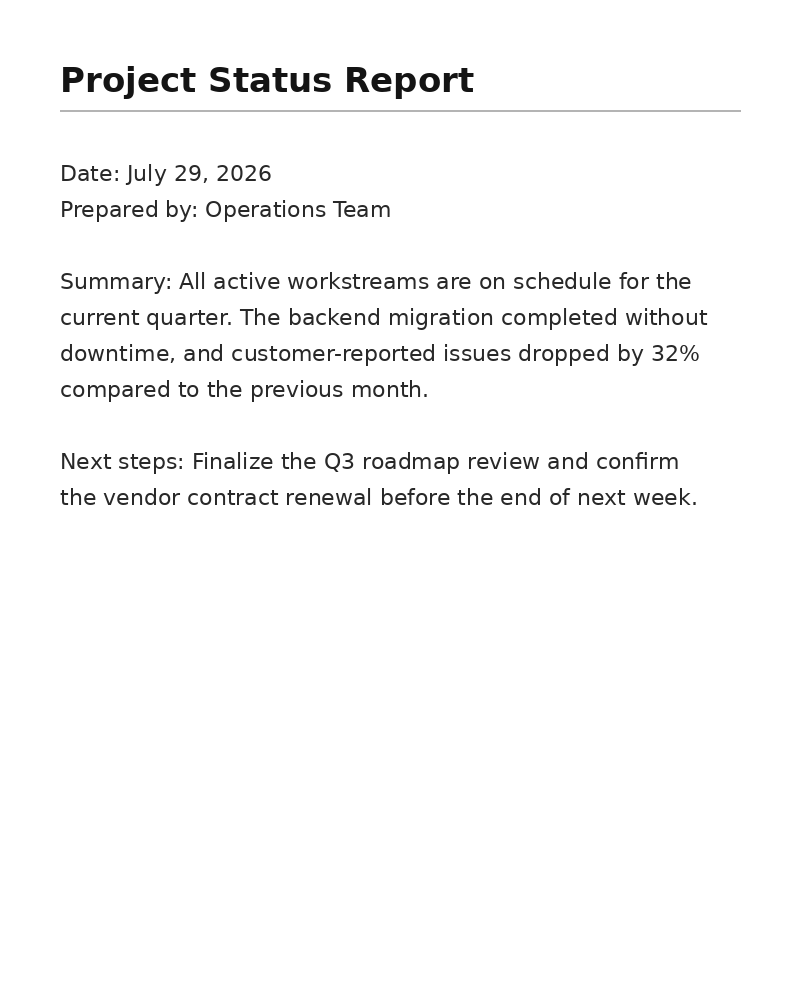
Project Status Report Date: July 29, 2026 Prepared by: Operations Team Summary: All active workstreams are on schedule for the current quarter. The backend migration completed without downtime, and customer-reported issues dropped by 32% compared to the previous month.
About this tool
This OCR (optical character recognition) tool reads the text inside an image — a screenshot, a scanned document, or a photo of a page — and converts it into plain text you can copy, search, or edit, or download straight into an editable Word (.docx) document. It supports both English and Bengali text in the same image. Handy for pulling text out of a screenshot without retyping it by hand.
Accuracy depends heavily on image quality: a clean, well-lit, in-focus photo of printed text will extract almost perfectly, while handwriting, low-resolution scans, or text photographed at an angle will have more errors, since OCR engines are trained primarily on clear printed text. For the best result, crop the photo to just the text area and make sure it's reasonably sharp before uploading.
How to use it
- Upload a screenshot, scan, or photo that contains text.
- Wait a moment while the OCR engine reads the image.
- The extracted text appears in a text box below.
- Click Copy Text to paste it anywhere, or Download as Word for an editable .docx file.
Example uses
- Extract a quote from a screenshot of a social media post.
- Pull text out of a scanned printed page instead of retyping it.
- Copy a Bengali paragraph out of a photographed book page.
- Digitize a printed report page into editable text for search or reuse.
Frequently asked questions
Does it work on handwriting?
It's optimized for printed text. Neat handwriting sometimes extracts reasonably well, but cursive or messy handwriting is much less reliable, since the underlying engine is trained mainly on printed fonts.
Which languages are supported?
English and Bengali are both supported in the same image, detected automatically — no need to pick a language manually.
Does it preserve the original formatting (tables, columns, bold text)?
No — this extracts plain text only. For a table specifically, use the PDF to Excel tool instead, which is built for table structure.