
Image Compressor
Upload an image, pick a quality level, and download a smaller file with minimal visible quality loss.
Click to choose a file, or drag & drop here
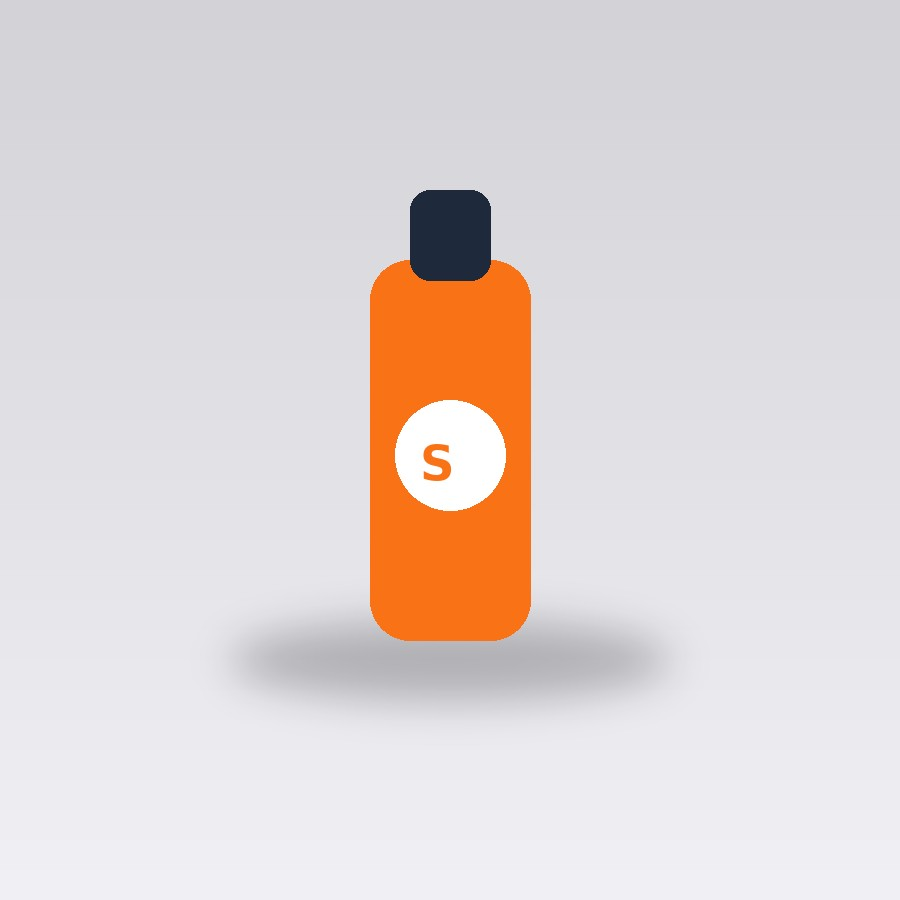
Original (56 KB)
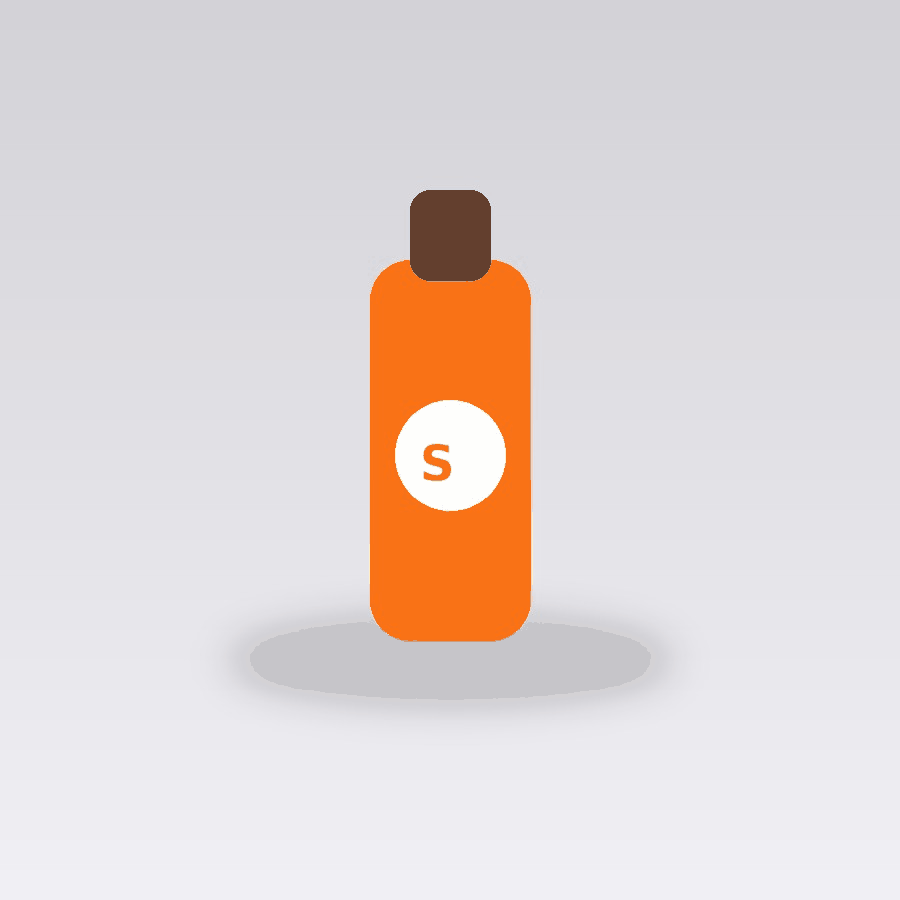
Compressed (28 KB)
About this tool
Shrink an image's file size (in KB/MB) with an adjustable quality slider, while keeping the visual quality close to the original. For JPEG/WebP this reduces compression quality directly; for PNG (which has no lossless "quality" setting) this uses colour quantization — reducing the number of colours in the image — the same general technique used by well-known PNG compressors.
A quality setting around 60-80 is usually the sweet spot for photos — noticeably smaller file size with very little visible difference. Going much lower starts to introduce visible artifacts (blockiness in JPEG, banding in quantized PNGs), so it's worth comparing the preview against the original before committing to an aggressive setting for anything you care about visually.
How to use it
- Upload the image you want to shrink.
- Adjust the quality slider — lower means a smaller file but more compression.
- Click Compress Image.
- Compare the new file size and download it.
Example uses
- Shrink a large photo down for faster loading on a website.
- Reduce an image's file size before attaching it to an email with a size limit.
- Compress screenshots before uploading them to a support ticket.
- Shrink a batch of product photos to keep a page loading quickly.
Frequently asked questions
What quality setting should I use?
60-80 is a good default for photos — a noticeably smaller file with very little visible quality loss. Below that, artifacts become more visible, so check the preview before going lower.
Does this work the same way for PNG and JPEG?
Not quite — JPEG/WebP compression directly reduces encoding quality, while PNG (which is lossless and has no quality setting) is compressed by reducing the number of colors used, a technique called color quantization.
Will compressing an already-small image make it worse for no benefit?
If an image is already small, a lower quality setting may not meaningfully shrink it further while still slightly reducing visual quality — for already-optimized images, a higher quality setting (or skipping compression) is usually better.